


Software development is changing fast and writing code alone is becoming a thing of the past. Claude Code by Anthropic is a terminal based AI coding assistant that understands your entire codebase and helps you code through natural language commands.
This tool allows you to write code, debug issues, and manage your projects simply by giving instructions in plain English. In this guide I will walk you through everything from installation to advanced usage in complete detail.
Even if you have zero technical experience you can start coding with AI by following these steps. We will progress step by step and you will clearly see what to do at each stage.
What is Claude Code?
Claude Code is a command line tool developed by Anthropic that runs directly in your terminal and helps you by understanding your projects. Unlike traditional AI chatbots Claude Code can read your files, make edits, run commands, and handle git operations on your behalf. This makes it fundamentally different from chat-based AI assistants.
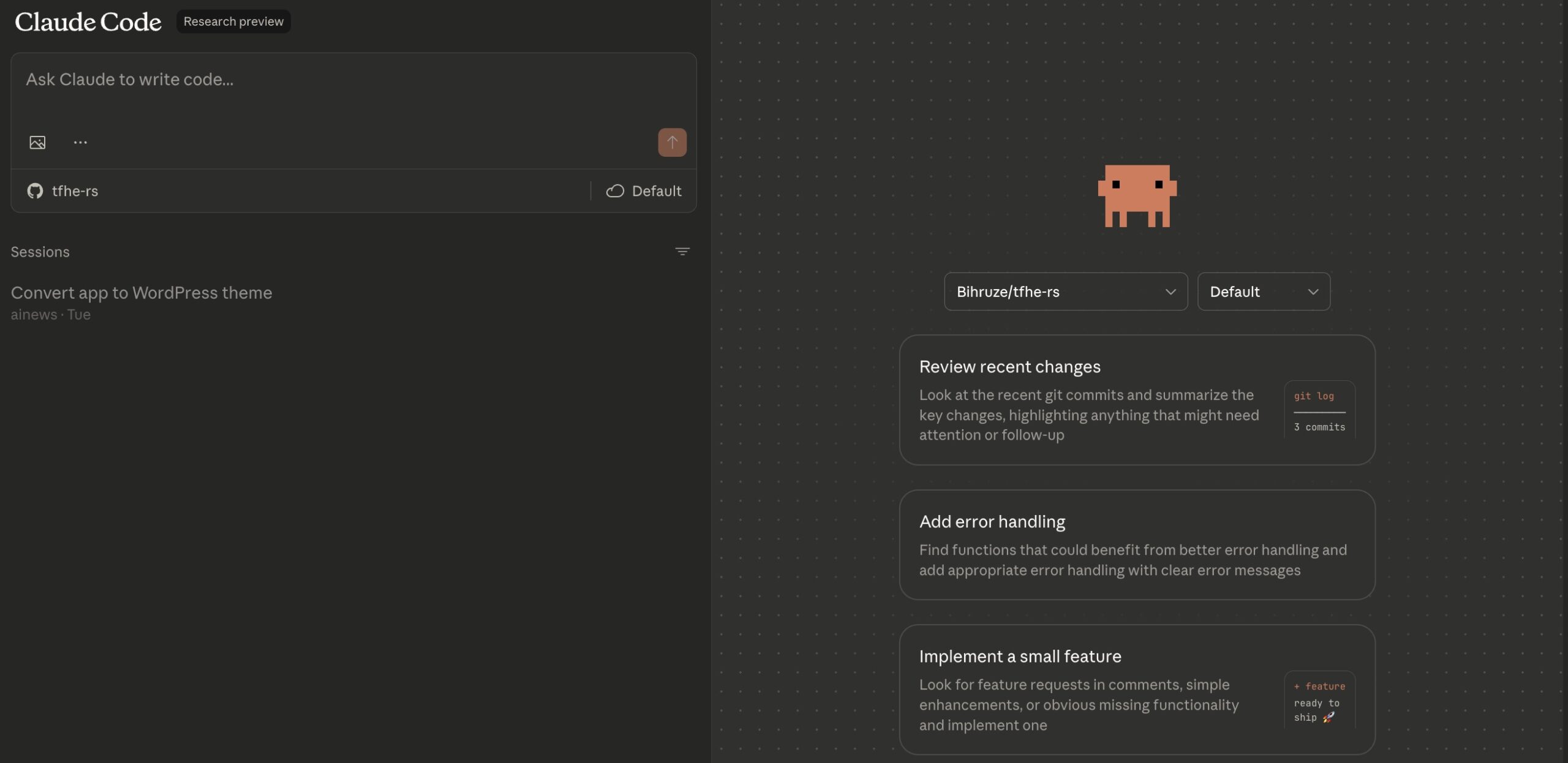
Think of it as having a skilled developer sitting next to you around the clock because that is exactly what Claude Code delivers. Coding has never been this easy and efficient. The coding with Claude experience transforms traditional development methods into something entirely new.
Why Choose Claude Code?
There are many tools available like Cursor, GitHub Copilot and similar products but Claude Code stands out in several critical areas. First you are using the Anthropic model directly with no middleman involved. This means faster and more accurate results for your coding tasks.
Second the context management is exceptional because Claude understands your entire project and grasps relationships between files effortlessly.
Third the learning curve is low and even if you have never used a terminal you will get comfortable within hours. Coding with Claude becomes a genuinely enjoyable experience once you get started.
System Requirements
Before installing Claude Code make sure your system meets the requirements because these are mandatory for proper operation. For operating systems macOS 10.15 or higher is supported along with Ubuntu 20.04 or higher and Windows 10. Windows users need to install WSL (Windows Subsystem for Linux) first.
Minimum 4 GB RAM is required but for larger projects 8 GB is recommended and processor speed is not critical. Node.js 18 or higher is needed for npm installation but if you choose native installation Node.js is not required. This is an important distinction to consider when choosing your installation method.
Native Installation Steps
Anthropic recommends native installation because it runs more stable and auto updates work smoothly without issues. For macOS and Linux users open your terminal and copy paste the following command. This command downloads necessary files and installs them on your system, the process takes a few minutes.
curl -fsSL https://claude.ai/install.sh | bash
Windows users should open PowerShell and running as administrator is recommended for best results. Enter the following command and wait for the installation to complete. After installation type claude in your terminal to start, it is that simple.
irm https://claude.ai/install.ps1 | iex
NPM Installation
If you have Node.js installed you can use npm instead and this method is preferred by some developers. Run the following command to install. Important warning: never use sudo npm install because it causes permission issues and creates security risks.
npm install -g @anthropic-ai/claude-code
After installation verify with claude --version command and if you see a version number the installation was successful. If you encounter any errors you may need to check your PATH settings. The npm documentation provides detailed information on this topic.
First Run and Authentication
Installation is complete and now we move to meeting Claude Code for the first time, this is an exciting moment. Navigate to your project folder, open terminal, and then simply type claude and press enter. On first run you will be asked to complete OAuth authentication and your browser opens automatically.
Log into your Anthropic Console account and complete the authorization process. If you have a Claude Pro or Max subscription you can start immediately. For API usage you need a key from Anthropic Console and authentication is a one time process that does not need to be repeated.
Basic Commands and Usage
Interacting with Claude Code is simple because you just write what you want in natural language and any language works fine. For example you can ask “What is in this project?” and Claude scans the folder structure and gives you a detailed summary. You can give instructions like “Add password reset feature to login page” and Claude handles the rest.
Claude finds the relevant files, suggests edits, and asks for your approval before every change. Nothing happens automatically and you stay in control throughout the process. This approach ensures a safe and transparent working environment.
Slash Commands
Claude Code has special commands inside and you start them with a slash character. The /clear command clears the current conversation, useful when switching topics and it saves tokens too. The /help command shows you a list of all commands and you will check this often at first.
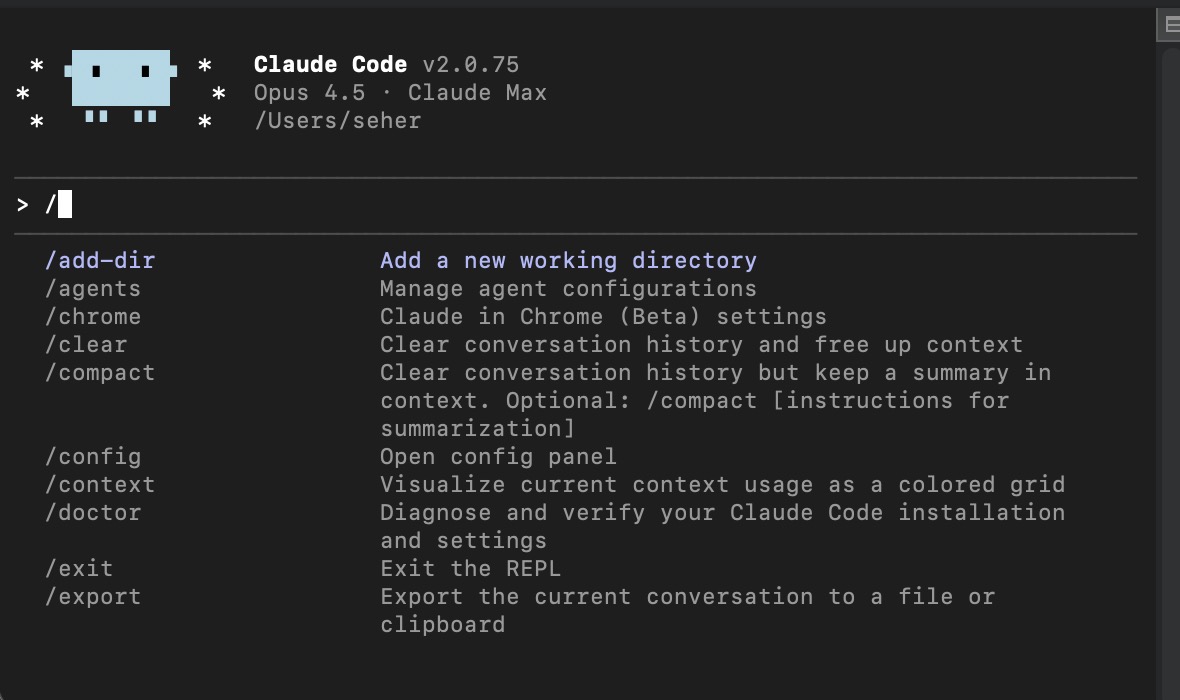
/bug command lets you report issues and it goes directly to Anthropic, feedback matters for improving the product. The /init command creates a CLAUDE.md file for your project and this file tells Claude about your project context. The Claude Code documentation explains all commands in detail.CLAUDE.md File
The CLAUDE.md file is critical when using Claude Code because this file defines your project rules and structure. Create a file named CLAUDE.md in your project root and write what the project does inside. List the technologies you use, specify your coding standards, and add your branch naming conventions.
Claude reads this file at the start of every conversation and you do not need to repeat yourself each time. This feature saves significant time in large projects. An example CLAUDE.md content could look like this:
# Project: E-commerce Website

## Technologies
React 18, Node.js, PostgreSQL

## Rules
Write comments in English
Functions should not exceed 20 lines
Tests required for every PR
GitHub Integration
Claude Code works perfectly with GitHub and PR reviews can be automated, this feature saves serious time. Run the /install-github-app command and follow the on screen instructions. After setup Claude automatically reviews every PR, detects bugs and security vulnerabilities.
A claude-code-review.yml file is created in your project root and you can customize review settings there. Default settings can be too detailed, for bug focused reviews only edit like this:
direct_prompt: |
  Review this PR and report only bugs.
  Be concise.
VS Code Integration
Good news for those who dislike using terminal because Claude Code also works with VS Code. Search for “Claude Code” in VS Code extension marketplace and install the official extension from Anthropic. After installation you can start Claude Code directly from VS Code and no separate terminal is needed.
You can run multiple Claude sessions in parallel and working on different files simultaneously is possible. This flexibility increases productivity in large projects. You can find the extension on VS Code Marketplace.
Claude for Chrome Extension
Anthropic recently announced Claude for Chrome extension and this is an important step expanding the Claude Code ecosystem. With the extension Claude is by your side in the browser, it can read pages, fill forms, and automate multi step tasks. Find it by searching “Anthropic” on Chrome Web Store.
Extension Features
You can set up automatic task scheduling and define daily, weekly, or monthly recurring tasks easily. You can work across multiple tabs simultaneously and automate information gathering processes. It integrates with Claude Code so you can test code written in terminal directly in browser and the coding with Claude experience becomes unified.
Safety Measures
Browser extensions carry security risks and Anthropic is transparent about this important issue. The extension cannot access financial sites, adult content sites, or pirate sites by default. It asks for approval before sensitive actions such as purchasing or sharing personal data. You can control which sites it can access from settings and starting with trusted sites is recommended.
Real World Use Cases
Claude Code looks good in theory but how does it work in practice is an important question. Here are real world examples and these scenarios demonstrate how powerful the coding with Claude experience really is.
Starting from Scratch
Claude is a great helper when creating new projects and you can give instructions like: “Create a blog application using React and Node.js with user login and comment features.” Claude first presents a plan, after your approval it creates files one by one and explains what it does at each step. It organizes file structure logically and produces code following best practices.
Understanding Existing Code
You joined a new team and there are thousands of lines of code, where do you start? Tell Claude “Explain the structure of this project” and it summarizes folder structure and main components. You can also ask specific questions like “What does this function do?” and it explains code line by line. It helps you understand the architecture logic and onboarding time decreases significantly.
Debugging
There is a bug but you cannot find it, you have been struggling for hours and morale is low. Paste the error message to Claude and ask “What is causing this error?” Claude scans the code, lists possible causes, and most times you solve it in minutes. It analyzes the stack trace, finds the root cause, and offers solutions.
Code Review
Your teammate opened a PR, you need to review but have no time available. Give Claude the PR link and say “Review these changes.” It detects performance issues, security vulnerabilities, and best practice violations. It catches details that human eyes miss and code review quality improves.
Documentation and Testing
Writing code is fun but writing documentation is boring, Claude takes this burden off your hands. Say “Create a README file for this project” and it prepares installation steps and API documentation.
Test writing becomes easier the same way, say “Write unit tests for this function” and it creates comprehensive tests considering edge cases. You can specify framework preferences like Jest or pytest.
Claude Code vs Cursor Comparison
These two tools are often compared and understanding which one suits you better is important. Cursor is a full fledged IDE, it is based on Visual Studio Code and feels familiar. It has a visual interface and you can see code changes in diff view, tab completion feature is very advanced.
Claude Code uses Anthropic models directly with no middleman layer in between. Token limits are higher so it does not lose context in large projects. Price performance ratio is better and you pay a fixed fee with Max subscription.
I recommend trying both, if visual interface is a must choose Cursor, if terminal is comfortable Claude Code is more powerful.
Productivity Tips
There are some tips for working more efficiently with Claude Code and applying them seriously improves results. Good prompt means good results because vague instructions give poor output. Provide context, instead of “when button clicked” say “when submit button in LoginForm component clicked.”
Give step by step instructions and do not ask too much at once, be patient. Specify output format like “in JSON format” or “as Markdown.” Learn keyboard shortcuts because up arrow brings previous commands, Ctrl+C stops ongoing process, and Ctrl+R searches through command history.
Advanced Features
You have learned Claude Code basics and now it is time to move to advanced techniques. You can give Claude more thinking time and adding keywords to your prompts is sufficient.
“Think.” provides basic level analysis, “Think harder.” is suitable for medium level planning, and “Ultrathink.” is the most comprehensive analysis mode.
Ultrathink. Prepare a detailed plan to migrate this project to microservices architecture.
MCP Integration
Model Context Protocol (MCP) allows you to connect Claude to external tools and you can add capabilities like web search and database access. For Brave search integration use the following command and Claude can now search for current information and apply it to your project:
claude mcp add brave-search -s project -- npx @modelcontextprotocol/server-brave-search
API vs Max Subscription
There are two ways to use Claude Code: API usage or Max subscription. When using API you pay per token and it can be economical for low usage projects. However bills rise quickly with heavy usage, spending 50 dollars in a day is possible and you need to track tokens.
Max subscription comes with fixed monthly fee and gives nearly unlimited usage rights. Ideal for those using Claude Code several hours daily because there are no billing surprises. Chrome extension is included in subscription. Start with API first, see your usage habits with 20 dollar credit, and if you use more than 10 hours weekly switch to Max.
Security Considerations
Claude Code requests powerful permissions and you need to be careful about security. Claude can read all your project files, protect sensitive information with .gitignore. Do not keep API keys and passwords in code, use environment variables instead.
Claude can run terminal commands and it asks confirmation each time. Do not approve commands you do not understand and ask what it does. Think twice before using --dangerously-skip-permissions because you accept risk. With MCP Claude can access internet, check which services it connects to and use trusted MCP servers only.
Troubleshooting
If you experience issues with installation or usage run claude doctor command because this command scans your system and detects problems. If you get “command not found” error check PATH settings and add necessary line to shell config file.
For permission errors fix npm configuration and never install with sudo. The Claude Code Troubleshooting page offers detailed solutions. You can also get help from community forums.
Community and Resources
There is an active community around Claude Code and you are not alone in this journey. Anthropic documentation is comprehensive and you can find it at code.claude.com. The awesome-claude-code repo on GitHub collects community contributions and has useful tools list.
The r/ClaudeAI subreddit on Reddit is active, you can ask questions and experienced users respond helpfully. Claude Developers server on Discord provides live help when you need it. YouTube has many tutorial videos and is ideal for those who prefer visual learning.
Future Expectations
Claude Code is developing rapidly and in the near future IDE integrations will increase, support for JetBrains products may come. CI/CD pipeline integrations will expand and automated code reviews will become standard. Multi agent systems will mature, parallel tasks will work more efficiently, and voice commands may come.
Competition is increasing and prices are expected to drop. Free tiers may expand and more people may get the chance to try. The coding with Claude experience continues to improve constantly.
Hooks and Automations
One of Claude Code’s powerful features is the hooks system and you can capture events and trigger actions. With pre-commit hook you can run automatic checks before commit, Claude reviews code and warns if issues exist. This feature improves code quality and the number of faulty commits decreases significantly.
With post-edit hook you can run automatic lint after file editing and it fixes format issues instantly. It ensures consistent code style and reduces friction within teams. You can write your own hooks in JSON format and customize them according to project needs.
Usage in Different Languages
Claude Code supports many programming languages and performs equally in each language. JavaScript and TypeScript is arguably its strongest area, it creates wonders in React and Node.js projects. It recognizes modern frameworks and works smoothly with Next.js and Vue.js.
Python is ideal for data science and backend projects, Django and FastAPI knowledge is solid. It can work with Jupyter notebooks too and supports data science workflows. Go, Rust, Java and C# are also supported, it works at competent level in each language but performance may drop in rare languages.
Strategies for Large Projects
Claude is perfect for small scripts but projects with thousands of files require different strategies. Adopt a modular approach, divide project into logical parts and focus on one module at a time. Specify active module in CLAUDE.md file and let Claude concentrate on that area.
Claude understands monorepo structures and you can use separate CLAUDE.md in subprojects. Rules of each package can differ and Claude adapts to this. Indexing takes time in large projects, be patient at first launch and exclude unnecessary files with .claudeignore.
Team Usage
Claude Code is great for individual use but teams can also benefit significantly. Write team accepted rules in CLAUDE.md and commit to Git, everyone uses same standards. Do GitHub app setup as a team and all PRs will be reviewed automatically.
Human reviewer load decreases and simple errors are caught early. Share effective prompts and create team wiki, solution one person finds helps everyone. Collective learning accelerates and coding with Claude culture spreads to the team.
Offline and Mobile Usage
Claude Code requires internet connection and unfortunately there is no offline mode, Claude must connect to API. If you code on a plane or mountain you can consider local LLMs as alternative but performance differs. If connection drops work stops and unsaved changes may be at risk.
Claude Code is designed for desktop and there is no direct mobile usage available. However you can connect to server via SSH and use it, possible with iPad Pro. Claude for Chrome does not work on mobile Chrome and desktop is required.
Detailed Competitor Comparison
There are many AI coding assistants in market and detailed comparison is important. GitHub Copilot is Microsoft backed and widely used, IDE integration is strong and very successful in tab completion. However agentic capability is limited and it cannot create and edit files.
Cursor offers full IDE experience, familiar because it is VS Code based and visual diff view is useful. It has multiple model support, you can choose Claude or GPT. Claude Code difference is using Anthropic model directly, highest token limits with 200K context window, and strongest agentic capability available.
Conclusion
Claude Code is a powerful tool that can transform your development process and used correctly it multiplies your productivity. You can start right away by following steps in this guide and gaining experience with small projects is recommended. Terminal usage might seem scary at first but you will get used to it in days.
Coding with Claude becomes genuinely enjoyable and AI assistants will be the future standard. Developers who adapt now will be in advantageous position, best time to start is today. Leave a comment if you have questions and wishing you success on your Claude Code journey.
Frequently Asked Questions
[Q1]Is Claude Code free to use?[/Q1]
[A1]Claude Code offers a limited free tier through API credits for new users. However, for regular usage, you need either an Anthropic API subscription (pay-per-token) or a Claude Max subscription which provides nearly unlimited usage for a fixed monthly fee. The Max subscription is recommended for developers who use Claude Code several hours daily.[/A1]
[Q2]Can I use Claude Code offline without internet?[/Q2]
[A2]No, Claude Code requires an active internet connection to function because it needs to communicate with Anthropic’s API servers. If your connection drops during a session, the work stops until you reconnect. For offline coding scenarios, you would need to consider local LLM alternatives, though they typically offer lower performance compared to Claude Code.[/A2]
[Q3]What programming languages does Claude Code support?[/Q3]
[A3]Claude Code supports a wide range of programming languages including JavaScript, TypeScript, Python, Go, Rust, Java, and C#. It performs exceptionally well with JavaScript and TypeScript ecosystems, including React, Node.js, Next.js, and Vue.js. Python support is also strong, particularly for Django, FastAPI, and data science workflows with Jupyter notebooks.[/A3]
[Q4]How is Claude Code different from GitHub Copilot?[/Q4]
[A4]While GitHub Copilot excels at tab completion and in-IDE suggestions, Claude Code offers stronger agentic capabilities. Claude Code can read entire codebases, create and edit multiple files, run terminal commands, and handle git operations autonomously. It uses Anthropic’s model directly with a 200K context window, allowing it to understand complex project relationships better than traditional AI coding assistants.[/A4]